

Suivez nous :

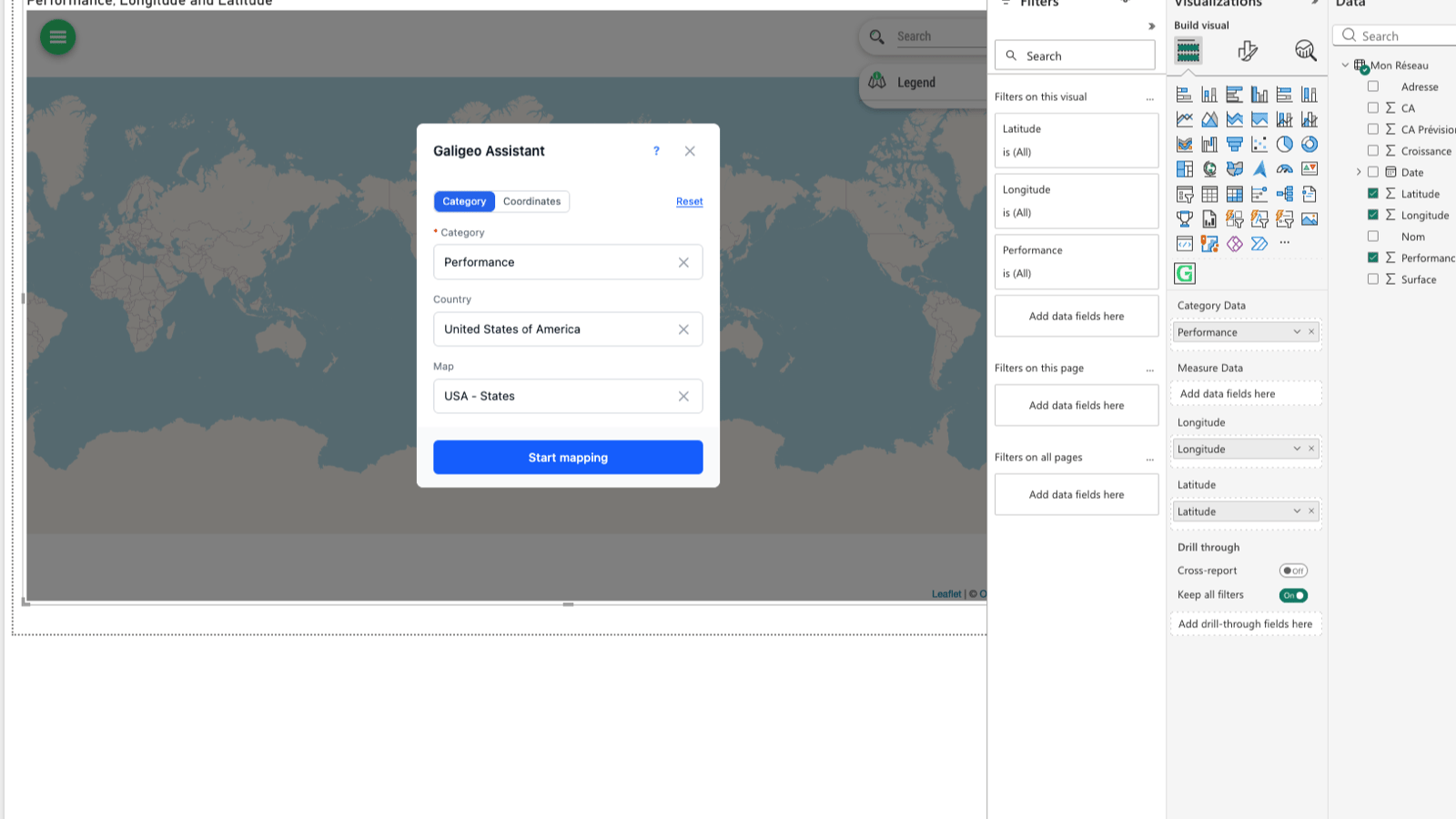
This Galigeo for Power BI update introduces a guided setup wizard, significantly improved performance on large datasets, automatic coordinate detection, and more reliable map-to-report interaction.
A setup wizard to get you started
Setting up your first map in Power BI is now much simpler. A wizard guides you step by step as soon as you open the Galigeo visual.
What this changes in practice:
When you open the visual, a window prompts you to choose your geographic data, select the appropriate reference layer, and create your first map in just a few clicks.
If you have already configured a map and want to change your settings, you can relaunch the wizard at any time from an existing map.
The wizard now supports XY coordinates (latitude/longitude): no more need to manually configure this type of data.
Contextual help tooltips appear at key points in the interface to guide you.
The wizard no longer appears in viewer mode: only map creators see it, avoiding any confusion for end users.
Even if you close the wizard without completing it, your default data layer is correctly created. No unpleasant surprises.
If the default join is not found in your data, the wizard still opens to let you configure it manually.
Significantly improved performance
Working with large data volumes in Power BI is now much smoother.
Data display: points now load in batches rather than progressively. The impression of slowness that could occur on Power BI Desktop has been completely eliminated.
Filtering stability: filtering a subset among tens of thousands of points no longer causes Power BI to freeze or crash unexpectedly. You can filter with confidence, even on large datasets.
Bidirectional filtering: filtering between the map and other report visuals now works reliably and predictably. Cases where the filter failed to trigger randomly have been resolved.
Smarter data configuration
The way Galigeo detects and automatically configures your data has been thoroughly overhauled.
Automatic coordinate detection: fields named "latitude", "longitude", "lat", "lng" or their variants are now correctly recognised. No more need to map them manually in most cases.
Relevant default layer: when your data contains coordinates, Galigeo automatically creates a point layer. Previously, latitude could be interpreted as a numeric indicator, producing unexpected results.
Layer deletion fixed: you can now freely delete the default layer without it being recreated in a loop.
Improved automatic matching: matching results between your fields and reference layers are more targeted. The match rate displays correctly with each calculation.
Readable field names: in the legend, tooltip, and filters, reference layer fields now display understandable names instead of technical aliases.
Swiss coordinate support (CH1903): the wizard now correctly handles Swiss coordinate systems, which was not the case before.
More reliable map-to-report interaction
The interaction between the Galigeo map and other visuals in your Power BI report has been strengthened on several points.
Multiple polygon layers: clicking on the map now correctly updates other visuals, even when multiple polygon layers are present.
Mixed layers: interaction works again when non-Power BI layers coexist with your data layers on the map.
Selection and filter consistency: when a legend filter is active, the selection tool no longer returns elements hidden by that filter. The behaviour is now intuitive and predictable.
"Allow map interaction" switch: the map filtering button state is now always consistent with the actual filter behaviour. No more mismatch between what you see and what happens.
Dynamic reference layer legend: the legend now correctly adapts to the actual content of the displayed layer, including Territory Management reference layers.
A more pleasant day-to-day interface
View reordering: you can now reorder your map views with simple drag-and-drop.
Better filter display: the layers panel no longer hides filters when they are displayed simultaneously.
Stable info-view: disabling the information panel no longer resets when you add or remove a layer.
Permissions preserved on publish: publishing a visualisation from Power BI Desktop to the online service now correctly preserves your permissions and settings.
Geographic data search and management
Geography search: the reference layer search window is more precise, with better filtering by country and search triggering at the right time.
Join management: matching between your data and geographic layers is more robust, particularly for default joins.
Territory Management: colour changes and territory reassignment are fully functional again.

Grégoire Delaporte